Monthly client reports from your own templates: how accounting firms stop copy-pasting
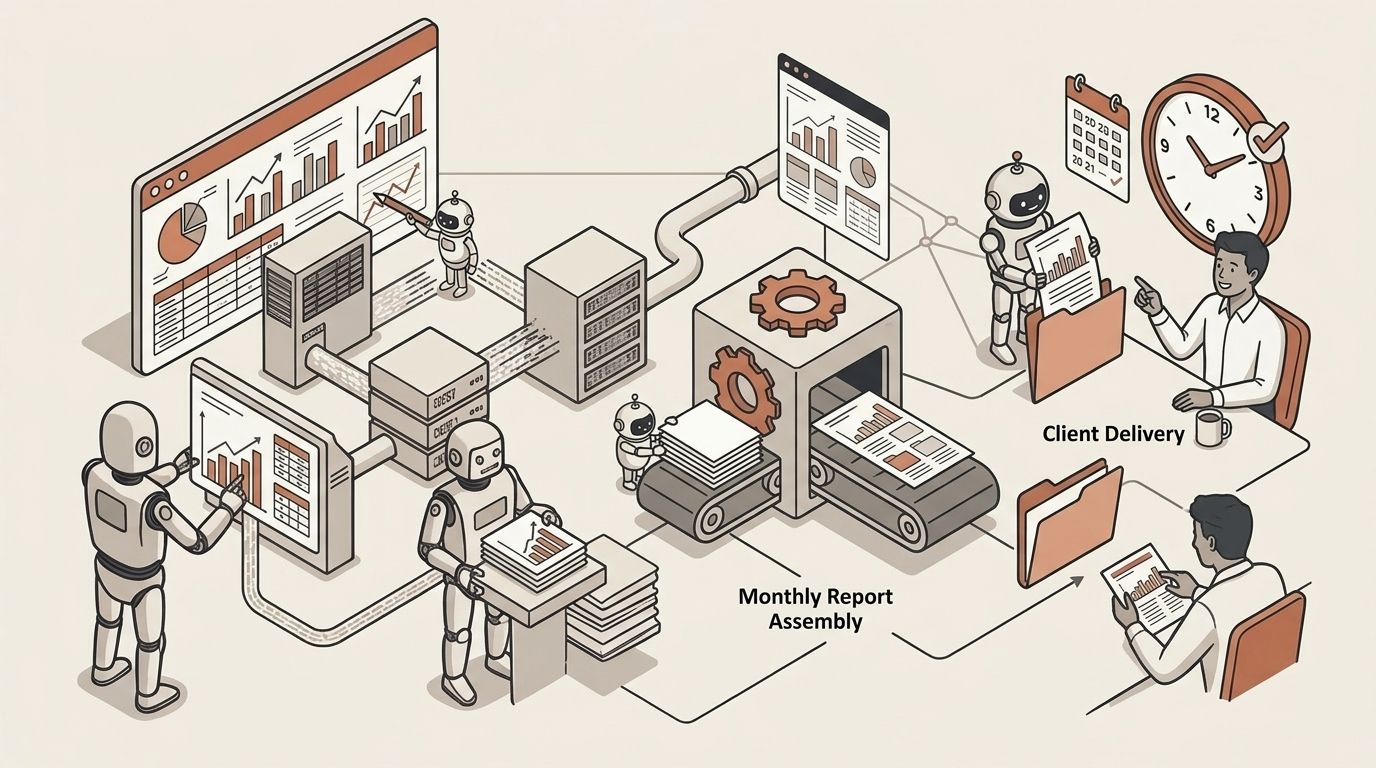
To automate client reports in an accounting firm, you turn the report you already send into a template once — sections, variables and tables — and let an AI agent fill it in with each client's figures and documents. The result is a draft in PDF or Word, in your firm's house style, that a person reviews before it reaches the client. You can ask for one in a conversation, client by client, or leave an automation to prepare the whole client list every month.
This article is part of our guide to AI for accounting firms.
Why does the monthly client report take so long?
For many clients, the monthly report is the visible proof that their accountant is working for them. And it is almost always produced the same way: someone opens last month's report, duplicates it, changes the period, exports the figures from the accounting package, pastes them into the tables, checks that the totals agree and rewrites two paragraphs of commentary. Then the next client.
Each report looks small. The trouble is the sum:
- It scales with client count, not with fees. The small client gets the same report as the large one, and it costs almost as much to prepare.
- It lands in the worst week. It is prepared at month end, exactly when filing deadlines and late paperwork pile up. If that is your bottleneck, start by no longer chasing client documents.
- Copy-paste is where the errors get in. A shifted row, last month's period nobody updated, another client's name in the footer. If nobody spots it first, the client will.
None of this is judgement work. It is attention work that looks like typing, and it is exactly the part a well-built template can take off your hands.
What goes into a good monthly client report?
Before you automate anything, take apart the report you already send. Most monthly management reports an accounting practice prepares have the same parts, and each part has a different author:
| Section | What it contains | Who writes it |
|---|---|---|
| Cover and period | Client name, month, your firm's logo | The template (fixed text and variables) |
| Summary of the month | Three or four sentences on what happened | The agent drafts; the adviser reviews |
| Key figures | Revenue, costs, result, VAT charged and VAT paid, cash position | The client's data; nobody types them |
| Comparison | Against last month and the same month last year | The client's data |
| Detail | Largest costs, invoices awaiting payment or collection, one row per item | A table that repeats per row |
| What is missing | Paperwork the client has not sent yet | The firm's own records |
| Next steps | Deadlines that affect them and what you need from them | The template and the adviser |
| Adviser's commentary | Interpretation and recommendations | The adviser |
Look at the last column. There is text that never changes, figures that come from data and that nobody should be typing, descriptive commentary that can be drafted from those figures, and advice, which is yours. A good template keeps those apart.
How does template-based report generation work?
In MosenAI the process has five steps. The first happens once; the rest, every month.
- You turn your report into a template. You do not upload the Word file as it is: you rebuild it in the template editor, section by section. Each section has a heading, whatever fixed text you want, and guidance for what the agent should write — for example, "summarise in three sentences how costs moved against last month; make no recommendations". You define the variables (client, period, VAT number) and the tables that repeat one row per item. And you give it your firm's look: cover, contents page, header and footer, logo, colours and typography.
- You connect where the data comes from. The client's documents, in their private knowledge source, which never surfaces in another client's portal; your ledger — Holded today — under your own API key; a spreadsheet; or whatever another automation has already extracted from their invoices.
- The agent fills in the template. Figures go into their variables and tables, and each section's commentary is drafted to your guidance.
- What comes out is a document, not loose text. A draft your team can edit together in the platform and export to PDF or Word. If the client wants the detail as a spreadsheet, it is generated as Excel too, with your columns.
- A person reviews it before it goes out. Whoever looks after the client opens the draft, corrects what needs correcting and approves it. You decide where the review step goes; the sensible rule is to put it in front of anything the client will see.
It is the last step of the journey we describe under document and data processing.
On request or every month? Two ways to run it
On request, in a conversation. From the firm's dashboard, someone writes: "Prepare September's report for [client] using the monthly template." The agent gathers the data, fills in the template and opens the draft for editing. It is a good way to start: one client, one report, compared with the one you would have prepared yourself.
Every month, as an automation. A schedule starts it on the day you choose. The automation works through your client list and, for each client, generates the report from its template and data. Then it stops at a review step: someone in the firm goes through the drafts, corrects what needs correcting and approves. Only then is each report filed in the client's folder (Google Drive, OneDrive or Dropbox) or sent to them by email.
An automation that will run on its own needs safeguards, and they are built in: if a run is interrupted, a report is not filed or sent twice, because every externally visible action happens exactly once; anything that may or may not have happened is held for a person rather than repeated. When the run ends, whoever owns the automation is notified.
| In a conversation | As a monthly automation | |
|---|---|---|
| Who starts it | A person, when they need it | A schedule, on the day you choose |
| How many clients | One at a time | The whole list |
| Where it appears | The draft opens for editing | Drafts in review, then the folder or an email |
| When it is checked | While you edit it | At a review step before anything leaves |
The monthly version needs the plan that includes automations; see pricing for details.
What stays with the adviser?
A monthly report mixes two things worth keeping apart in the template:
- Descriptive commentary. "Utility costs are up on August." "Three issued invoices have been awaiting payment since July." It describes what is already in the data, and it is the kind of text an agent can draft from the figures.
- Advice. "It would make sense to bring this purchase forward before year end." "We would review the payment terms with this customer." That is professional judgement, and your responsibility.
In practice, the guidance for the recommendations section can say "leave this section for the adviser" or "suggest two or three points to review, without recommending anything". And your firm's rules — tone, disclaimers, what is never promised — are set once and apply to every agent.
The sign-off is yours too: the report goes out once someone in the firm has read and approved it. For many clients, that report is the reason to speak to their accountant every month. If the document prepares itself, you arrive at that conversation with time to think about what to say. If your clients also check their documents and status in a portal, we cover that under client service and accounts.
Checklist: prepare your template before you automate
- [ ] Pick one report: the one you send most often and that varies least from client to client.
- [ ] Gather three recent reports for different clients and highlight what changes between them.
- [ ] Classify each block: fixed text, figure, descriptive commentary or advice.
- [ ] Name each variable (client, period, VAT number…) and note where each figure comes from.
- [ ] Decide which tables repeat one row per item, and what their columns are.
- [ ] Write each section's guidance the way you would brief someone in their first week at the firm.
- [ ] Decide who reviews, within what time, and what happens if a draft is not approved.
- [ ] Decide where the report is filed and how the client finds out it is ready.
- [ ] Measure the "before": how many minutes each report takes today. Without that number you will not know whether it was worth it.
Frequently asked questions
Can I use my Word template as it is? Not directly. The template is rebuilt once in the editor, section by section, with your cover, logo and colours. What comes out afterwards is a Word or PDF file in your firm's style.
Where does the agent get the figures? From the data you connect: the client's documents, your ledger if it is Holded, a spreadsheet, or what another automation has already extracted. If a figure does not add up, the reviewer sees it before the client does; that is what the review step is for.
Does the client see the report before we have reviewed it? Not if you place the review before it is filed or sent. You decide the order of the steps.
Where does my clients' data live? In the EU, and that is not a promise: EU-only data residency is enforced in our infrastructure code, so a non-EU region fails the build. Your firm also has its own encryption key, your data is separated from every other customer's, and it trains no one's model. More on our trust page.
Which firms get the most from this? Those that send the same kind of report to many clients. If every report is a bespoke document, a template helps less. We cover other processes that fit on our accounting and advisory firms page.